Documentation hosting
A gh-pages branch will be automatically created in your repository to host the generated documentation even on GitLab. The reason is that we will have one documentation place hosting all the documentation of all the branches and languages. We will use subfolders to differentiate them. <br> Therefore each branch is responsible to update the documentation for its own branch and language tag in the gh-pages branch, and not to interfere with the documentation of other branches/language tags. <br> The CI job for one branch will then commit and push the changes to the gh-pages branch, make it it available on the public documenation pages. <br> On GitLab, the result is copied by the CI job to the public folder, which is the default folder for GitLab Pages.
Gitlab CI/CD secret settings
In the following is explain how to create a token and pass it as an environment variable in Gitlab CI/CD settings. <br> This token will be used in the CI/CD pipeline to authenticate with the Gitlab API and perform necessary actions, such as cloning repositories, pushing changes, or triggering other pipelines. <br>
Go to your Gitlab instance and log in to your account.
Navigate to the project where you want to set up the CI/CD pipeline.
Click on “Settings” in the left sidebar, then select ‘’Access Tokens’’ from the dropdown menu.
Click on the “Add new token” button.
Fill in the “Token name” field with ‘’DOC_DEPLOY_TOKEN’’ or any name you prefer but for documentation that is the name we will use in the CI/CD pipeline.
Set an expiration date for the token (not optional anymore in Gitlab, but you can set a long expiration date if you want like 1 year).
Select the appropriate roles for the token based on the actions you want to perform in your CI/CD pipeline. ‘’Maintainer’’ role is usually sufficient for most CI/CD tasks, but you can choose a different role if needed.
Select the appropriate scopes for the token based on the actions you want to perform in your CI/CD pipeline. For example, if you need to clone repositories, you may need to select the “read_repository” scope. If you need to push changes, you may need to select the “write_repository” scope. For the documentation actions we have defined, you need both “read_repository” and “write_repository” scopes.
Click on the “Create project access token” button to generate the token.
Copy the generated token and keep it in a secure place, as you won’t be able to see it again once you navigate away from the page.
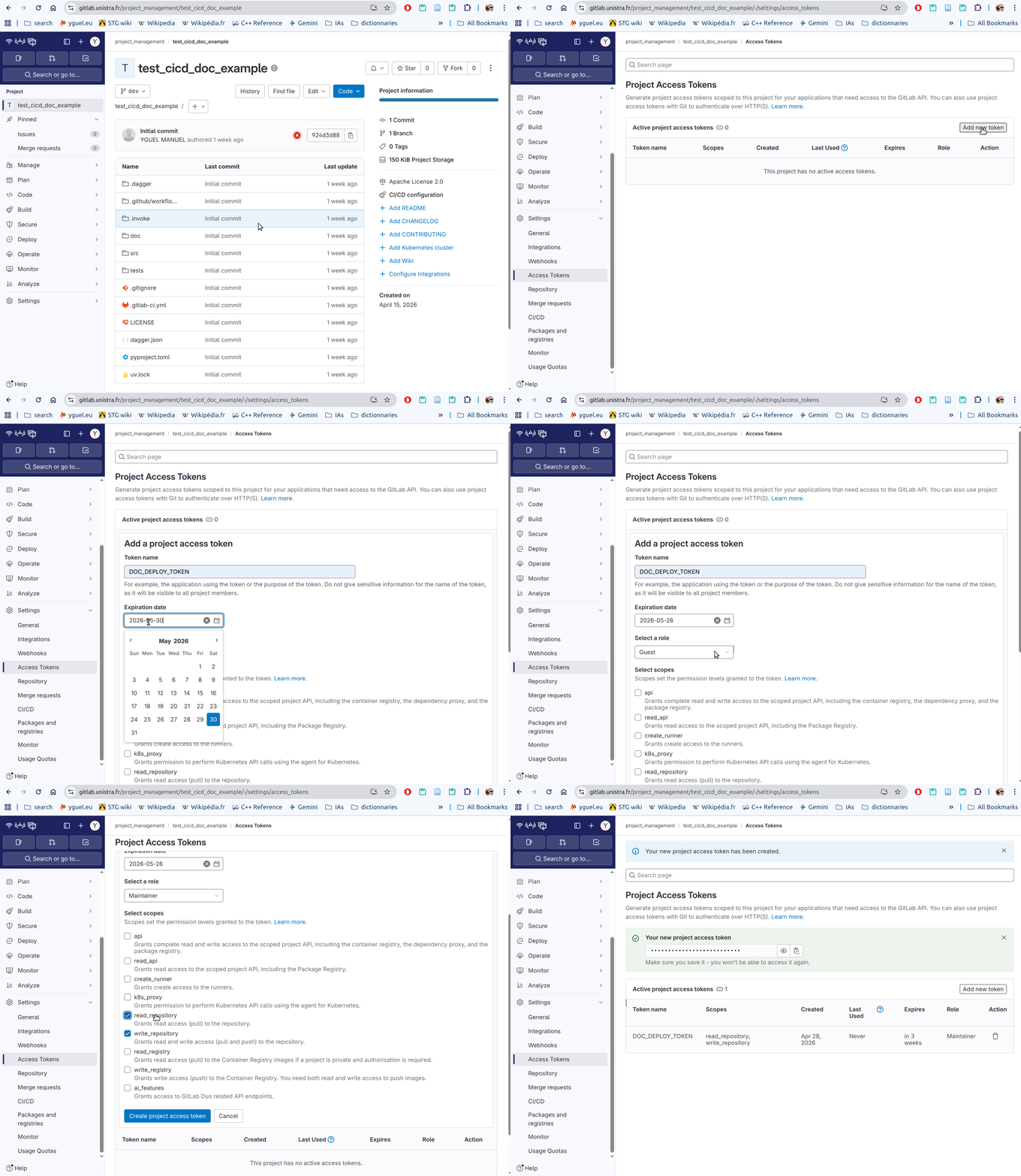
Fig. 1 Create an access token in Gitlab
Now you have to pass the token as an environment variable in Gitlab CI/CD settings:
Go back to the project settings
Click on “CI/CD” in the left sidebar,
Then expand the “Variables” section.
Let the type and environment scope as default
VERY IMPORTANT: Check the ‘’Mask variable’’ option to hide the value of the token in CI/CD job logs.
In key field, enter ‘’SECRET_TOKEN’’ for documentation purposes with the iris_cicd_tools framework,
In value field, paste the token you generated in the previous steps.
Click on the “Add variable” button to save the environment variable.
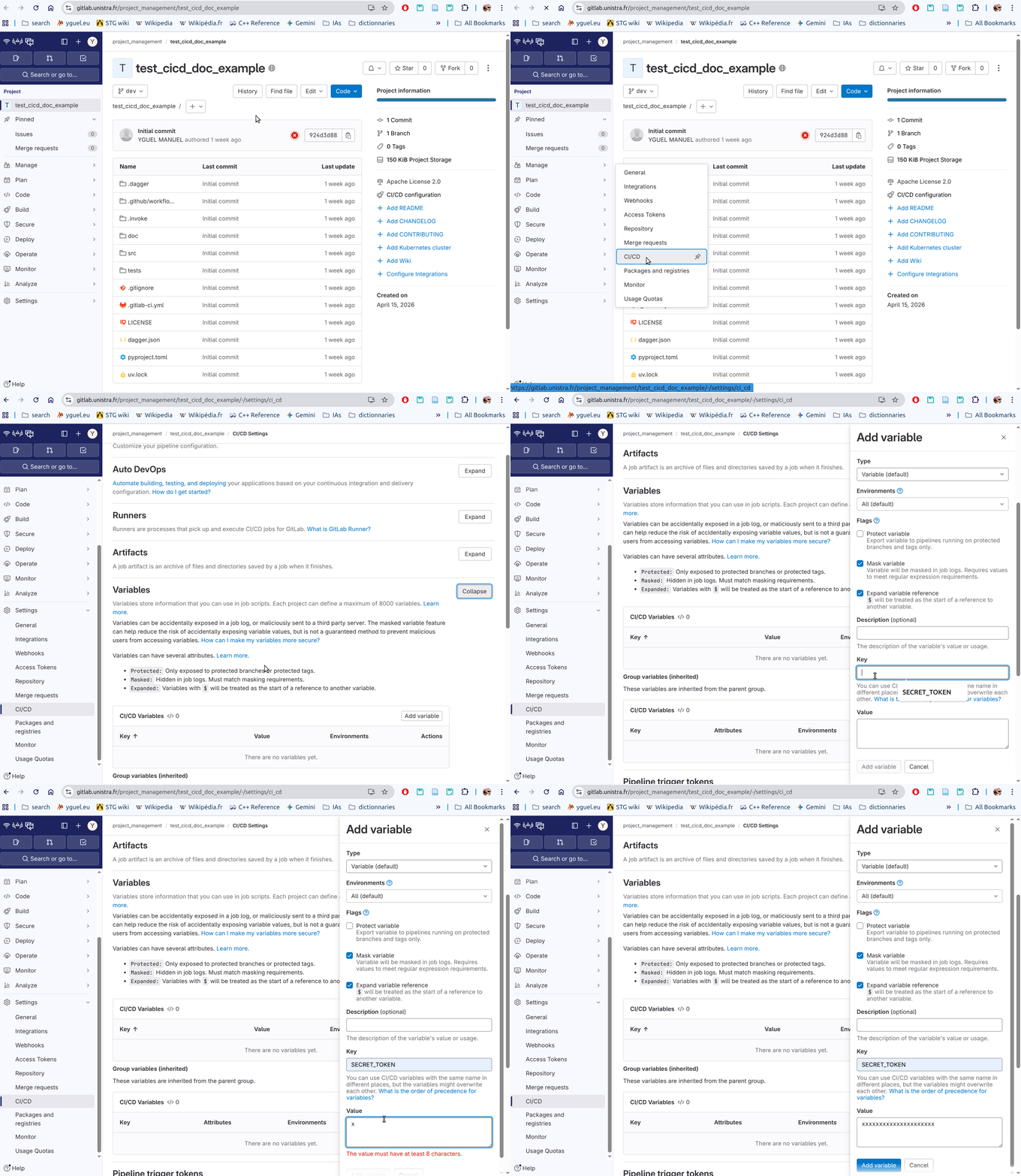
Fig. 2 Create an environment variable to be used in a Gitlab CI/CD pipeline from the access token